
Share:

AI marketing & automation


Most GA4 properties collect some data the moment the tag fires. Few are actually configured to collect the right data. The gap between “the tag works” and “the setup is correct” is where most businesses lose trust in their own reports, question their key events, or find their historical data has already expired.
This guide walks through the full setup process in order. It covers account structure, tag installation, key event configuration, data retention and consent, connecting GA4 to Search Console, Google Ads, and BigQuery, verifying the setup, and what changed in GA4’s reporting for 2026. Each section states the correct setting first, then explains why it matters.
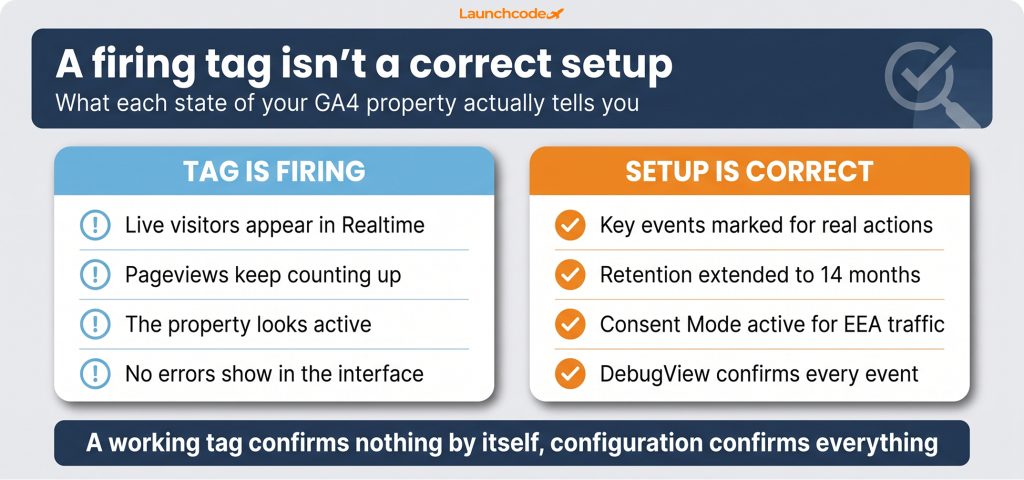
A GA4 property can show live visitors in Realtime and still be misconfigured in ways that quietly break reporting. The most common gaps are a two-month data retention window nobody extended, events that were never marked as key events, and missing consent signals for EEA traffic. None of these stop the tag from firing, which is why they go unnoticed.
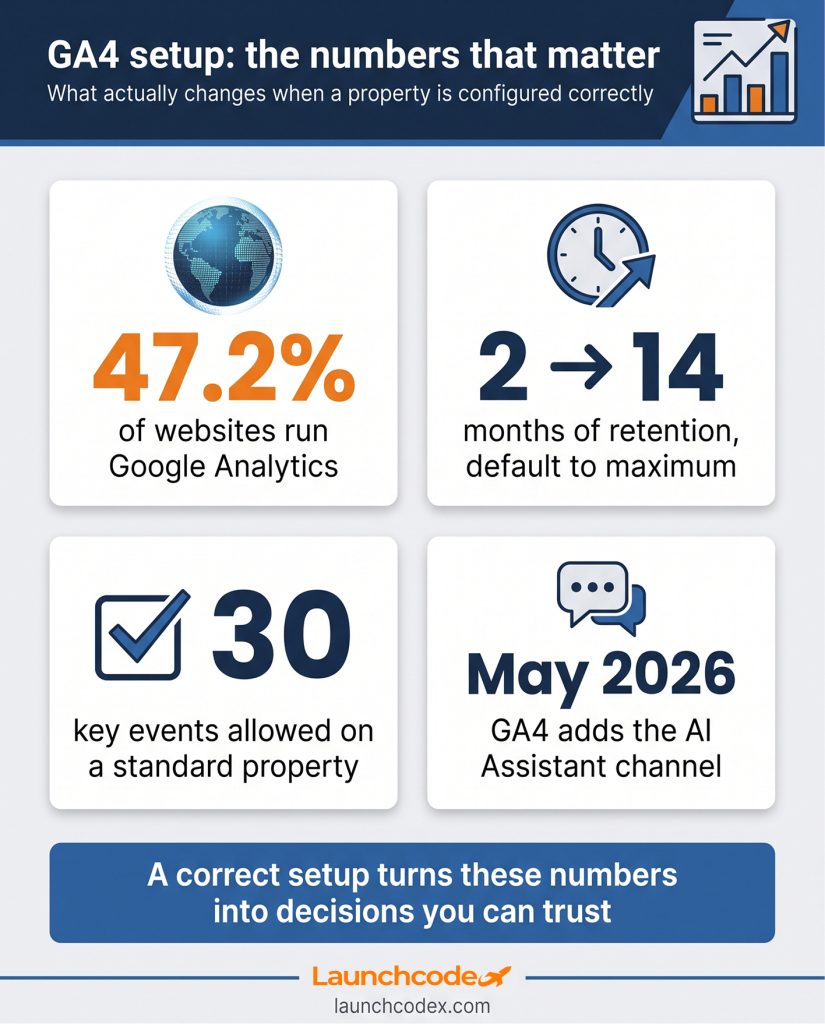
Google Analytics is used by 83 percent of websites with a known traffic analysis tool, or 47.2 percent of all websites. That scale means most of the setup mistakes covered in this guide are common, not rare. As Krista Seiden, a former Google Analytics Advocate who helped build GA4, put it in her interview with Search Engine Journal, GA4 “isn’t so much an update, but an entirely new way of doing analytics, set up to scale for the future, work in a cookieless world, and be a lot more privacy conscious.” Treating it like a simple upgrade from the old interface is where most setup problems start.
Launchcodex sees this pattern most often during site migrations, where a GA4 property gets carried over to a new platform without anyone re-checking key events, retention, or consent settings against the new site structure.
“On a migration, the GA4 property usually moves over fine. What doesn’t move over is anyone actually checking that the key events and retention still match the new site structure. That’s where the data quietly breaks.” Derick Do, Co-Founder & Chief Product Officer
The fix is not complicated, but it does require going through each setting in order, which is what the rest of this guide covers.
A GA4 account holds one or more properties, and each property connects to your site or app through a data stream that generates the Measurement ID your tag needs. Get this structure right first, since every later step, from key events to BigQuery export, depends on it.
Getting the time zone and currency right at this stage matters more than it looks. Both are difficult to change cleanly later without affecting historical reporting, so confirm them before moving to installation.
The three ways to install GA4, a native Google tag, Google Tag Manager, or a CMS plugin, all send data to the same property, but they fit different situations and carry different risks. Pick one method and use it consistently, since running two installation methods at once is the single most common cause of duplicate, inflated pageview data.
| Installation method | Best fit | Key strength | Watch out for |
|---|---|---|---|
| Native Google tag (gtag.js) | Developer-led, custom-coded sites | Direct install, nothing extra to maintain | Code can disappear during a theme or template update if placed in the wrong file |
| Google Tag Manager | Teams that expect to add more tracking tags over time | Centralizes every tag in one place and scales well | Requires learning GTM and remembering to publish container changes |
| CMS plugin | WordPress, Shopify, and Wix site owners | Fastest setup, little to no code required | Data quality depends on the plugin staying updated and supported |
Julius Fedorovicius, founder of the GTM and GA4 education site Analytics Mania, frames installation as only the starting point: “Correctly installing Google Analytics 4 is the first step toward proper data collection.” The steps that follow, key events, retention, and verification, are what actually make that data usable.
Key events are the actions that tell you whether your traffic is doing anything valuable, and in GA4 you have to mark them deliberately rather than rely on defaults. Standard properties can mark up to 30 events as key events, while GA4 360 properties can mark up to 50, according to Google’s own key event documentation.
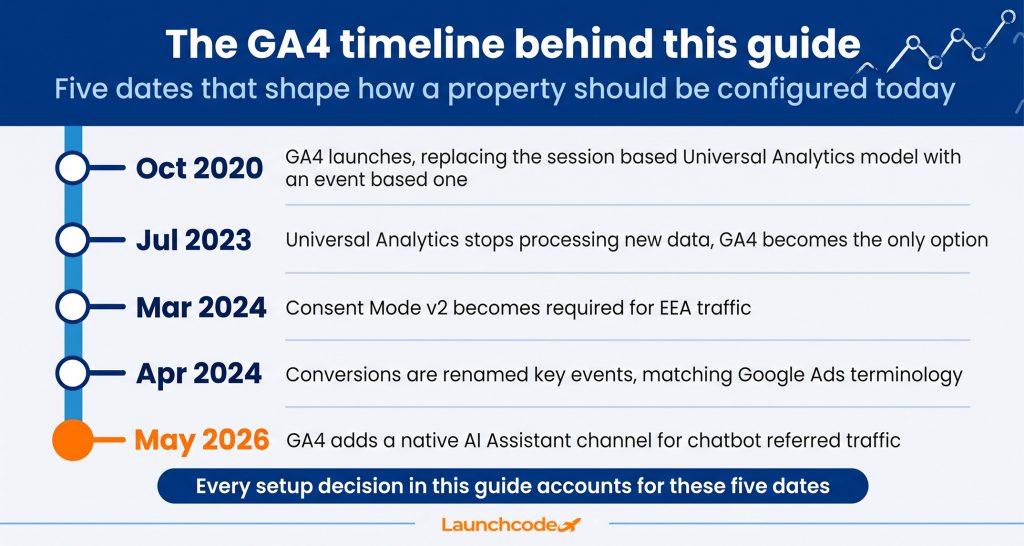
In April 2024, Google renamed “conversions” to “key events” inside GA4 reporting, so the terminology now matches Google Ads, where a conversion is a key event that has been imported into Ads for bidding. If you learned GA4 before that change, or you are reading an older tutorial, this is the source of the mismatch. Google’s own explanation of the shift from conversions to key events confirms that existing settings carry over automatically, so nothing breaks, but the label in your reports will now read “key events.”
By default, GA4 marks purchase, first_open, in_app_purchase, and two related app subscription events as key events automatically. Everything else, including a lead form submission or a newsletter signup, needs to be marked manually.
“Traffic without key events is just a number on a dashboard. I’ve reviewed plenty of GA4 accounts with six figures of monthly sessions and zero events marked, which means nobody can actually tie that traffic to pipeline.” Tanner Medina, Co-Founder & Chief Growth Officer
Skipping this step is the reason many GA4 properties show plenty of traffic and no way to tell which of it mattered.
GA4 keeps user-level and event-level data for two months by default, and any property serving European traffic needs Consent Mode v2 configured or it stops collecting usable data from EEA visitors entirely. Both settings are easy to fix and both are commonly left at the default.
Standard properties can extend retention up to 14 months, and this window applies to user level data used in Explorations and funnel reports, according to Google’s data retention settings documentation. Standard aggregated reports are not affected by this setting, but detailed exploration data is, so a short retention window can quietly erase your ability to compare year over year trends. Age, gender, and interest data always expire after two months regardless of your setting.
To fix it, go to Admin, then Data Settings, then Data Retention, and change the setting to 14 months.
Since March 2024, any property collecting EEA traffic needs Google Consent Mode v2 in place and consent signals shared with Google, or measurement, ad personalization, and remarketing features for that traffic stop working, as confirmed in Search Engine Journal’s coverage of the requirement. This applies whether your business is based in the EEA or simply receives visitors from it.
“Consent mode fails quietly. Teams add a cookie banner, check the box, and move on, but the signal never actually gets wired into GTM or gtag. The banner shows up, the data just doesn’t reflect it.” Derick Do, Co-Founder & Chief Product Officer
If your site uses a consent banner, confirm it is a Google-certified consent management platform and that the consent signal is actually wired into your GTM or gtag implementation, not just displayed on the page.
Linking GA4 to Search Console, Google Ads, and BigQuery turns it from a standalone traffic report into a connected system that shows which queries and campaigns actually drive key events. None of these links are required for GA4 to function, but each one closes a real reporting gap on its own.
To link Search Console, go to Admin, find Product Links under the Property column, and select Search Console Links. This adds organic query and landing page data into GA4’s Search Console reports, so you can see which queries brought in traffic that later converted. Linking Google Ads under the same Product Links section shares key event and audience data between the two platforms, which is what allows a key event created in Analytics to become a conversion Google Ads can optimize toward.
Teams that need raw event-level data beyond what standard reports show can export GA4 data to BigQuery. This export is free within the BigQuery sandbox, though standard properties are limited to one million events per day. This is most useful for larger sites or agencies building custom dashboards that go beyond GA4’s native reporting.
Before trusting anything else in your GA4 property, confirm the tag is actually sending data using DebugView and the Realtime report. This step catches installation mistakes, like a duplicated tag or a misconfigured trigger, before they show up as bad data weeks later.
Once verified, keep an eye on how sessions get counted. GA4 defines an engaged session as one lasting 10 seconds or longer, including a key event, or including two or more page views, a real shift from the old bounce rate calculation, as explained in Skillsyard’s GA4 beginner guide. Reading your first reports with the old bounce rate definition in mind will lead to the wrong conclusions.
Any GA4 property configured today will already include a native AI Assistant channel in its Default Channel Group reports, added by Google on May 13, 2026, with no configuration required. This channel automatically groups traffic referred by recognized AI chatbots such as ChatGPT, Gemini, and Claude, separating it from generic referral traffic.
Google describes the update directly, stating that site owners “can now identify how users are discovering your site through chatbots like ChatGPT, Gemini, and Claude via a new AI Assistant channel” in their reports, according to Search Engine Journal’s reporting on the update.
“This is the first time GA4 has treated AI referral traffic as its own channel instead of burying it in referral or direct. For anyone doing GEO work, that’s a real reporting gap closing, not a cosmetic change.” Tanner Medina, Co-Founder & Chief Growth Officer
For a new property, this means acquisition reports will look slightly different from what older tutorials describe, since AI Assistant now sits alongside Organic Search and Paid Search as its own channel. No setup action is required, but it is worth knowing before you compare your channel breakdown to an outdated screenshot from an older guide.
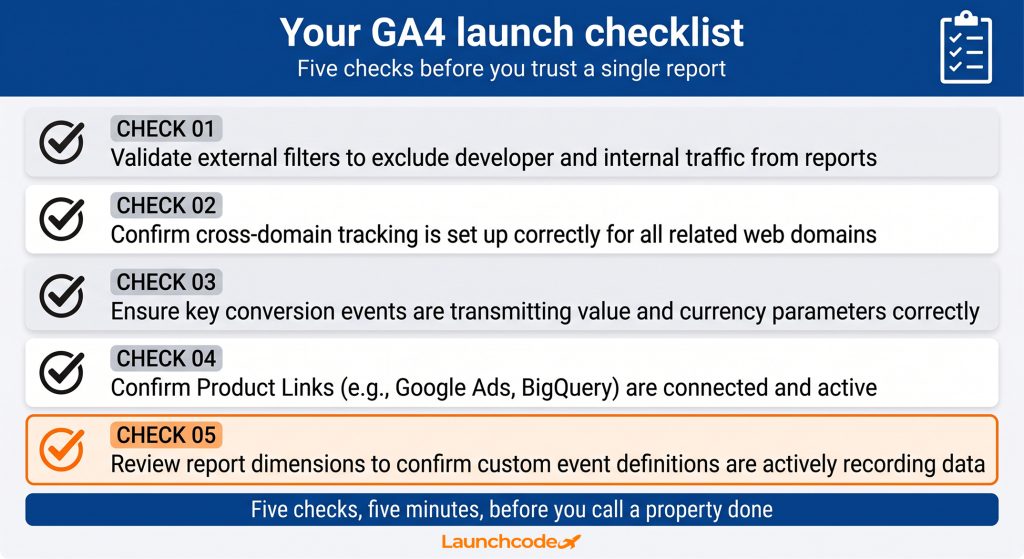
A correct GA4 setup is confirmed, not assumed. Before treating a new property as ready, walk through five checks in order. Confirm the account, property, and data stream are named correctly with the right time zone. Confirm only one installation method is active. Confirm your key events are marked, not left at defaults. Confirm data retention is set to 14 months and consent mode is active if you serve EEA traffic. Confirm DebugView shows your events firing correctly.
Each of these settings takes minutes to fix and weeks to notice if left wrong. Teams that treat GA4 setup as a one-time task tend to rediscover these gaps during an audit or a site migration, often after months of incomplete data. Building the habit of checking these five points on every new property, or after any major site change, is what separates data you can act on from data you have to explain away.
No. Universal Analytics stopped processing new data on July 1, 2023, so if you already created a GA4 property at that point, it is your active analytics source. If you never created one, follow the account and property setup steps in this guide to start fresh.
Realtime data appears within seconds in the Realtime report. Full report data, including sessions and key events, typically takes 24 to 48 hours to populate completely.
An event records any interaction, like a page view or a click. A key event is an event you have deliberately marked as important to your business, such as a purchase or a form submission, so it gets surfaced in key event reporting and can be shared with Google Ads as a conversion.
No. You can install GA4 directly with a native Google tag or through a CMS plugin. Google Tag Manager is recommended if you expect to manage multiple tracking tags over time, since it centralizes them in one place.
GA4 applies a two-month data retention window by default for Explorations and funnel reports. Standard properties can extend this to 14 months under Admin, Data Settings, Data Retention, which should be done as part of initial setup rather than after data is already missing.


Real stories from the people we’ve partnered with to modernize and grow their marketing.